RSVP responsesevery answer in one place
Who is coming, how many, and what they would like to eat.
Every reply your guests send from the invitation lands in your dashboard the moment they send it. You see the totals at a glance, read each answer in full, and download the list as a CSV file when your caterer asks for numbers.
More on the preview and the sandbox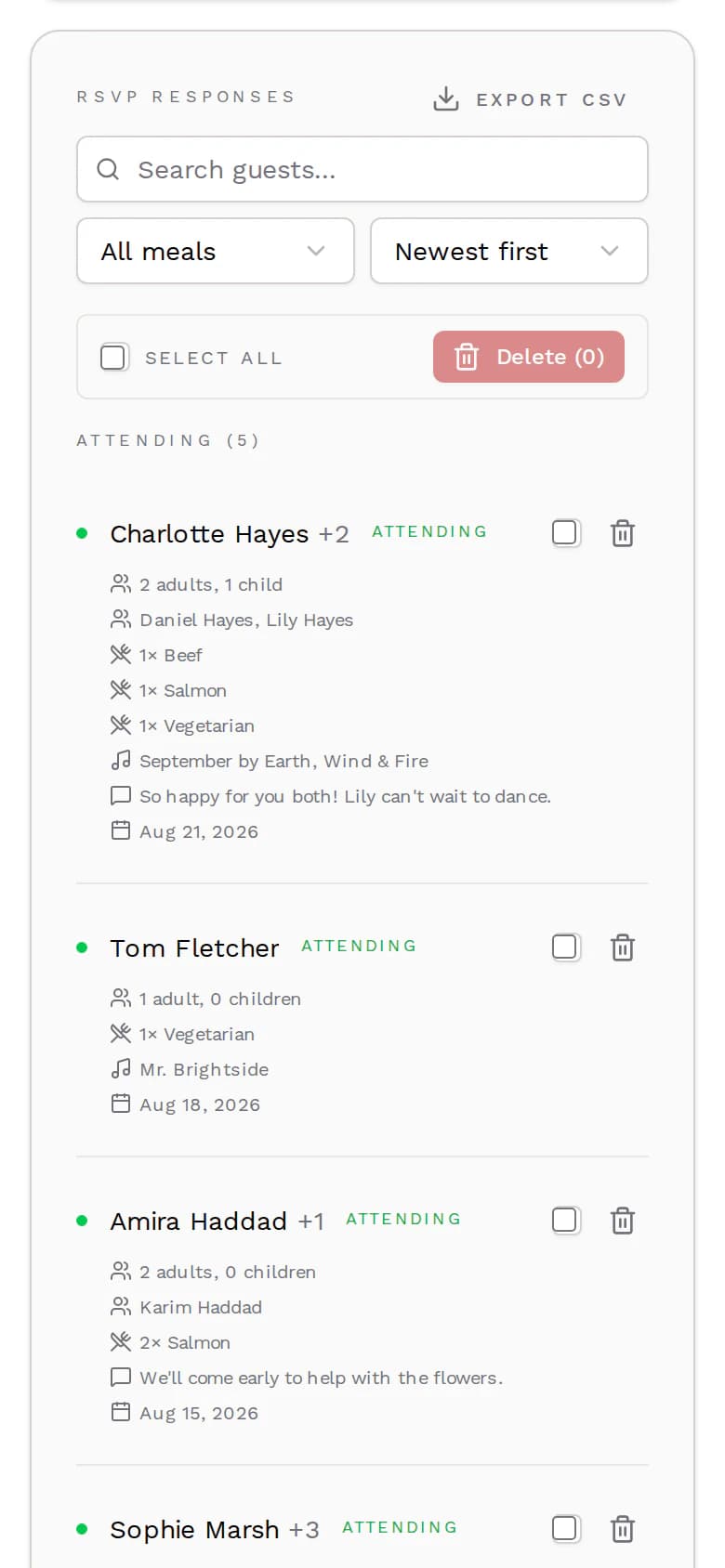
How it works
From the first yes to the final headcount
You choose the questions
In the editor you switch on what your RSVP form asks. Name and a yes or no are always part of it, everything else is up to you.
Guests reply on the invitation
Your guests answer right on the page, without an app or an account. Each reply goes to you alone, never to the other guests.
Every answer arrives live
Your dashboard updates as replies come in, with the totals already added up. Replies that arrived since your last visit are marked as new.
The questions
Four questions you can switch on
Name and a yes or no are always on the form. These four each have their own switch in the RSVP settings, named here as you will find them in the editor.
Guest Count
How many people come with this reply, up to a maximum you set between one and ten. Split it into adults and children if you plan seats or menus for kids.
- Split Adults and Children
- Max Guests
Meal Preference
A choice between up to six options you name yourselves. With the guest count on, let every guest choose: the form then asks for the name of each person in the party and how many of each meal they want.
- Meal Choice per Guest
- Meal Options
Song Requests
One song per reply for your playlist or DJ. Only guests who accept are asked.
Guest Message
A free-text field for anything else, from a question for you to warm wishes. Guests who decline can leave a message too.
You can also set a response deadline that the invitation shows your guests. It is a reminder, not a cutoff: late replies still reach you.
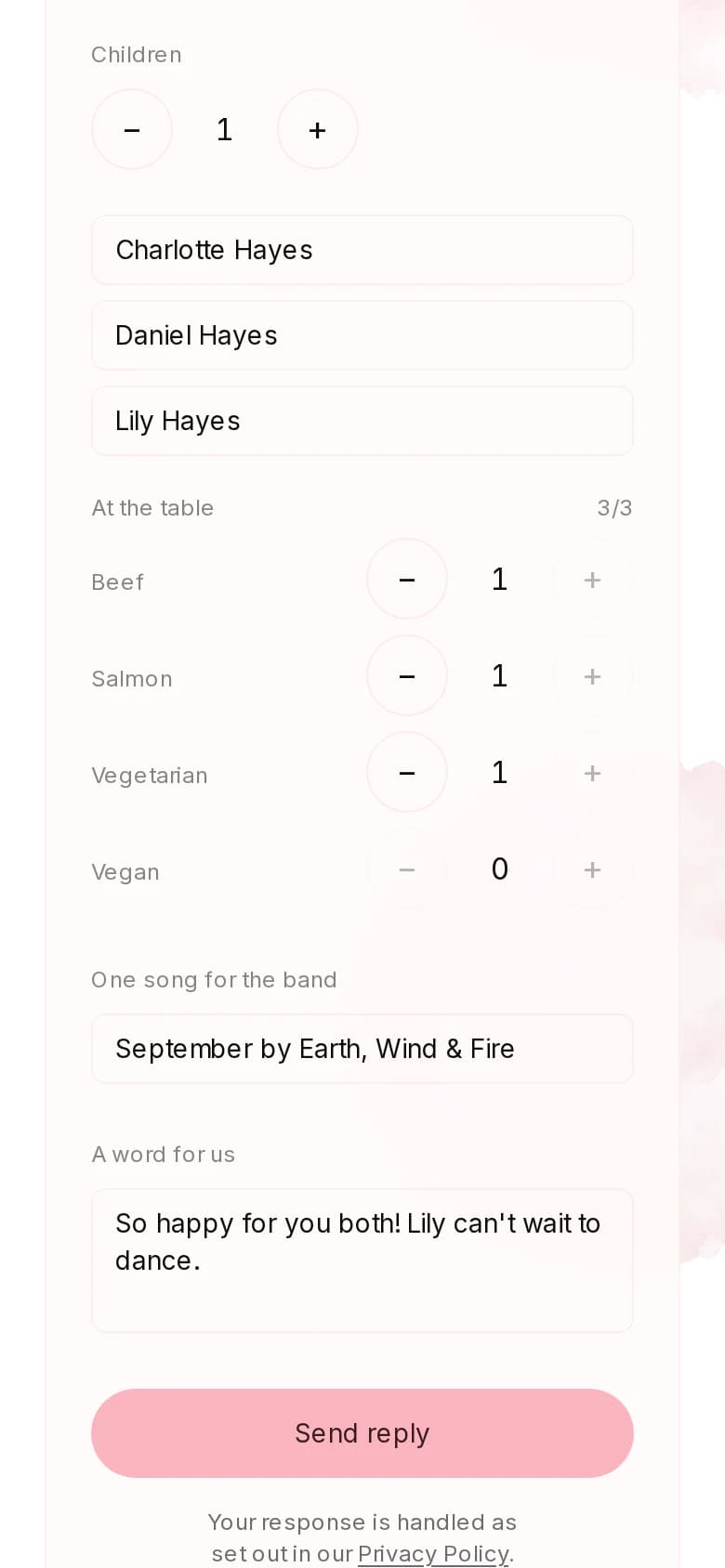
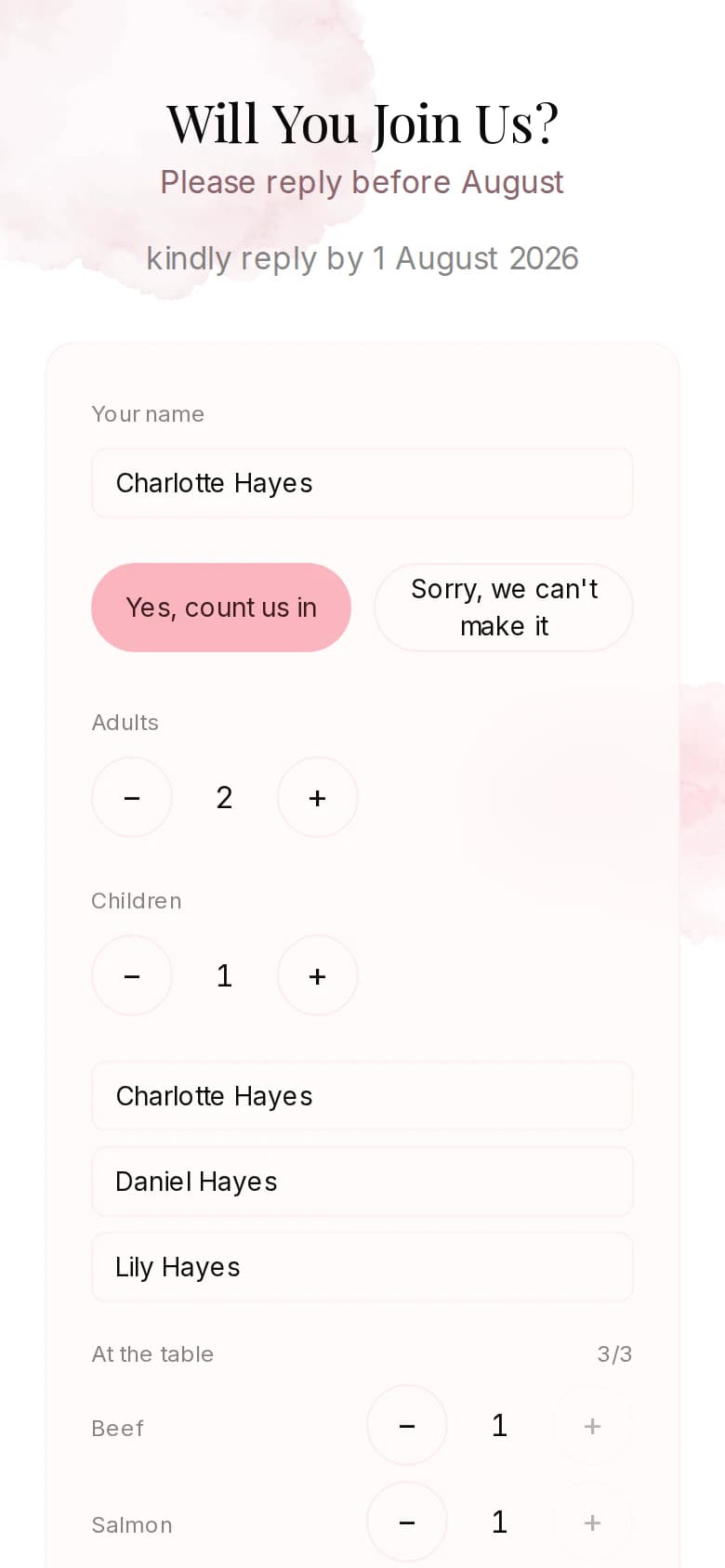
Charlotte's reply as she fills it in: every question switched on, in the same design as the rest of the invitation.
The dashboard
Everything counted for you
One page per invitation holds every reply, so there is nothing left to tally by hand.
Totals at the top
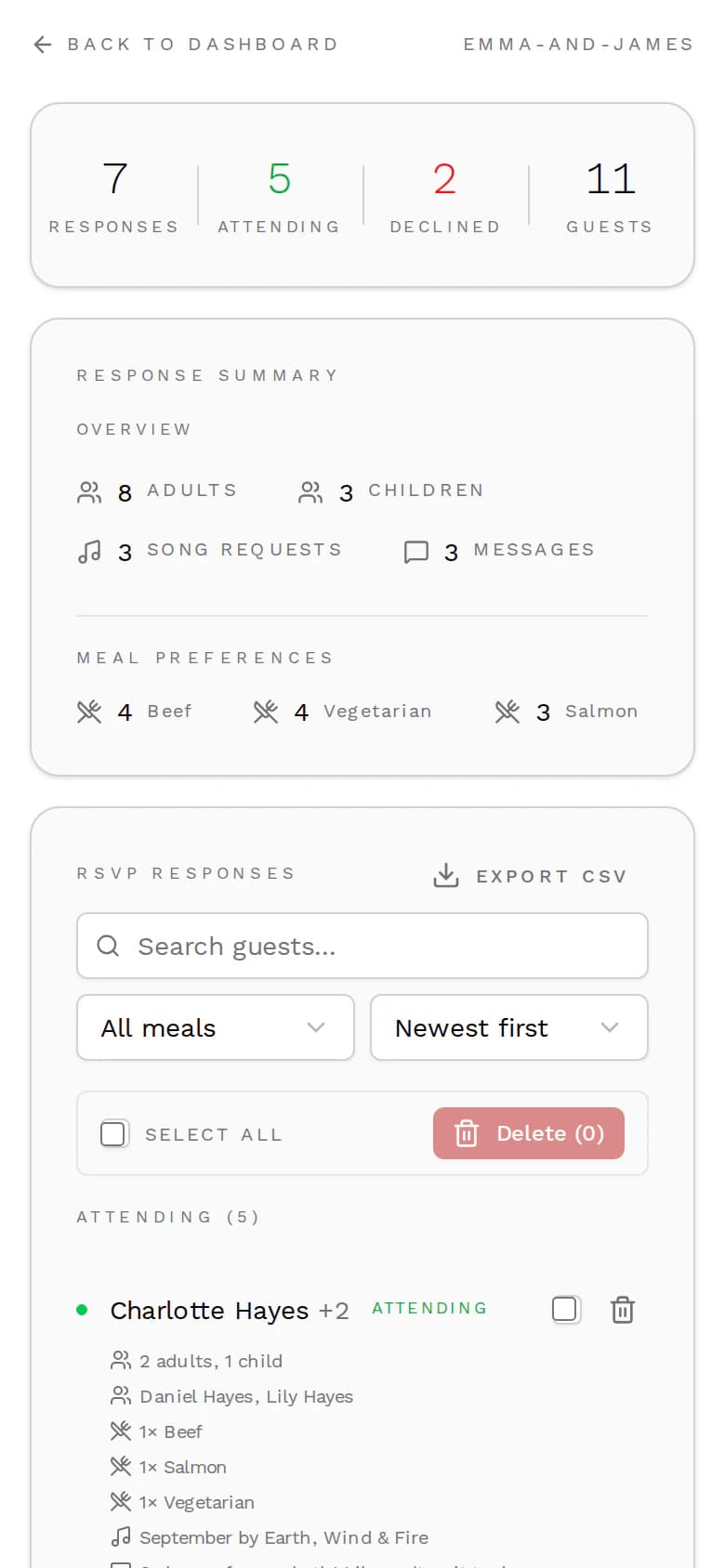
Replies, acceptances, declines and the number of guests coming, added up across every reply.
Adults, children and meals
How many adults and children are coming, how many guests chose each meal, and how many song requests and messages are waiting.
Every reply in full
Acceptances and declines in two columns, each reply with its party size, names, meal choices, song request, message and date.
Search, filter, sort
Find a guest by name, show only the replies with one meal, or sort by newest, oldest or name.
Delete what you don't need
Remove a single reply or select several at once, such as a test reply or an answer a guest sent twice.
Export
A CSV file for your caterer
Export CSV downloads all replies as one file, one row per reply. Open it in your spreadsheet app to sort and print, or forward it to your caterer or venue.
Only you see the replies. They are stored on servers in the EU and deleted with your invitation, at the latest twelve months after the event date. Because a meal choice can reveal health or beliefs, guests confirm their consent before sending one.
Columns in the file
- Name
- Attending
- Guests
- Adults
- Children
- Meal Preference
- Guest Meals
- Guest Names
- Song Request
- Message
- Submitted
Good to know
Questions about your RSVP responses
Exporting, double replies, children and how long replies are kept.
Didn't find what you were looking for?
Write to us with your question. We reply within one business day.
More features